

Every blog post needs a graphic. A Pinterest pin, a featured image, a quote card for Instagram. You know this already. What you might not know yet is which design tool will actually get that image made before your toddler wakes up from the nap that was supposed to last another twenty minutes.
Canva and Adobe Express both promise easy design. Both have free plans. Both work on your phone. But “easy” means something different when you’re a professional designer with an afternoon to spare than when you’re a parent with ten minutes and one hand free. This comparison looks at the second situation, because that’s the one most of us are actually in.
What You’re Actually Trying To Make As A Parent Blogger
Before comparing features, it helps to name what you actually need. Most parent bloggers are not making complex branded graphics or video ads. You need:
- Pinterest pins for your blog posts
- A featured image for each post
- Instagram and Facebook graphics to share your content
- Maybe a simple opt-in freebie, like a checklist or planner page
That’s it. You don’t need motion graphics or advanced photo editing. You need something that gets a clean, readable image made in the small window of time you’ve got, without a learning curve that eats the window itself.
Template Variety: Which One Has What You Need Without Endless Scrolling
Canva has a much larger template library, and it’s organized by use case: Pinterest pin, blog banner, Instagram story, and so on. Search “Pinterest pin” and you’ll get pages of results in different styles. This is genuinely useful when you want options, but it can also become its own time sink. Scrolling through fifty templates looking for “the one” is not a good use of a ten-minute window.
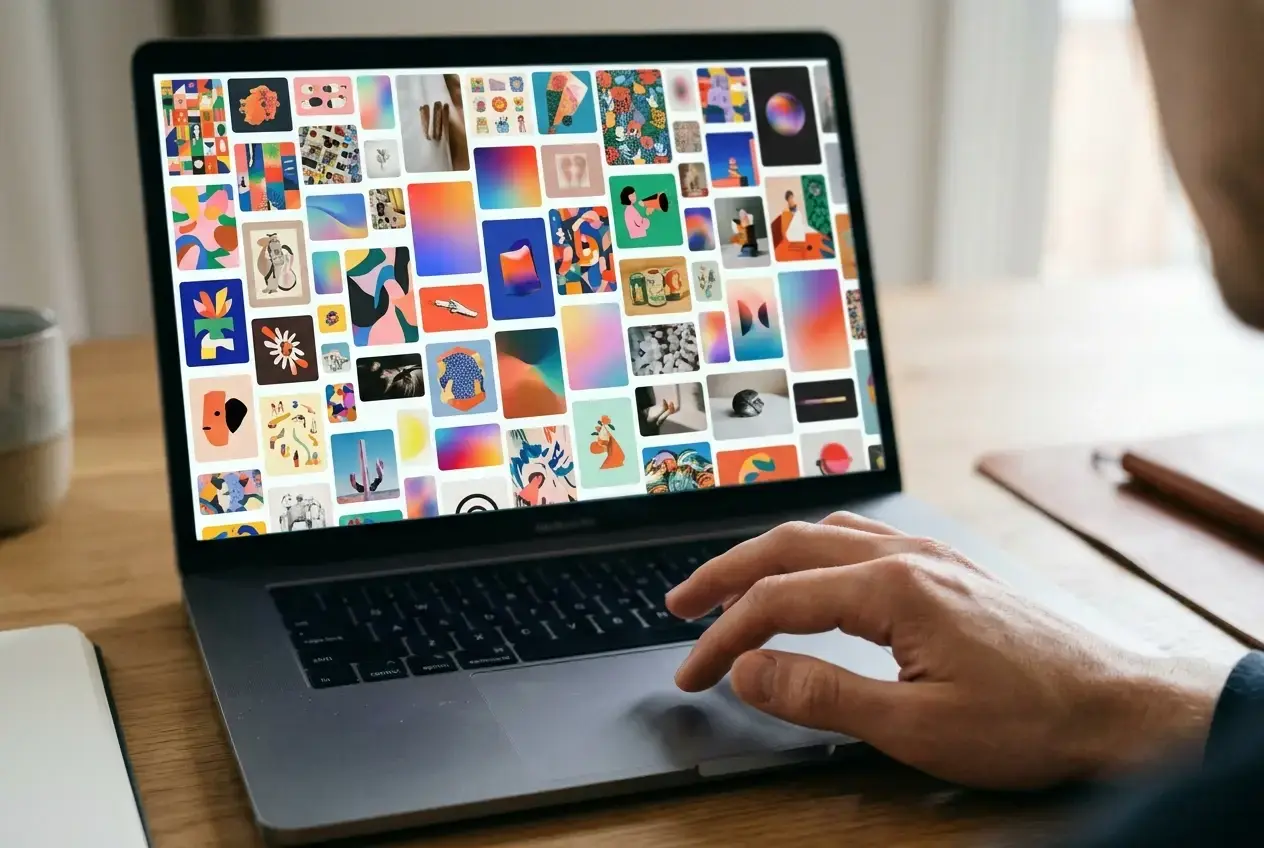
Adobe Express has fewer templates overall, but the selection is more curated. There’s less to scroll through, which sounds like a downside until you’re the one trying to get something done between school pickup and dinner. Fewer good options can beat a hundred options you have to sort through.
If you already have a strong sense of your blog’s visual style, colors, fonts, the general look, Adobe Express’s smaller library won’t feel like a limitation. If you’re still figuring that out and want to see lots of styles before picking one, Canva’s volume is the advantage.
Ease Of Use When You Only Have Ten Minutes
This is where the comparison actually matters for your situation.
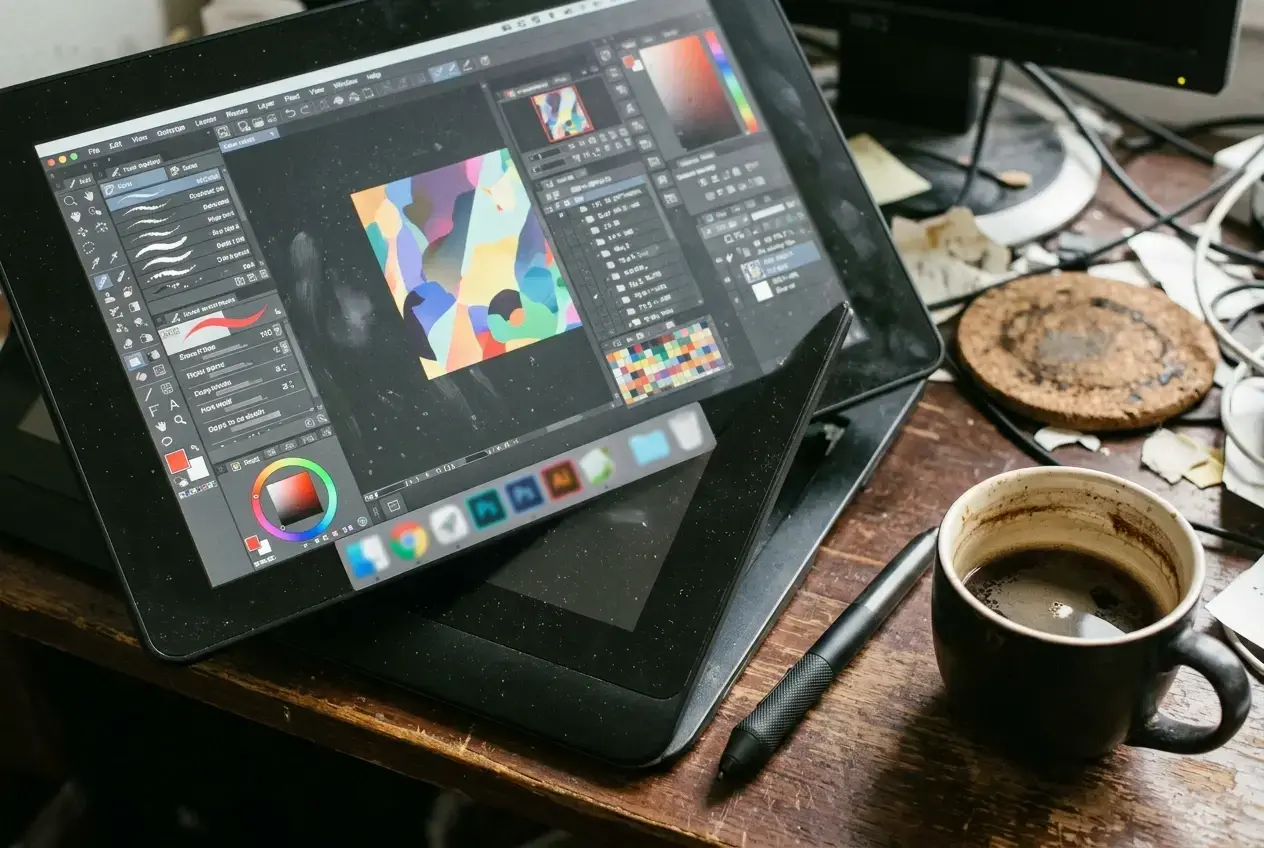
Canva’s interface has more going on: more menus, more panels, more buttons for effects and animations and apps you’ll probably never use. None of it is hard exactly, but it takes a few sessions to learn where things live. The first few times you open it, you’ll spend part of your ten minutes just finding the text tool or the right shade of your brand color.
Adobe Express has a simpler, more stripped-down interface. There’s less to look at, which means less to learn. For someone opening a design tool for the first time, with a baby monitor on the counter and one eye on the clock, that simplicity can mean the difference between finishing a graphic and giving up halfway through.
Neither tool is genuinely difficult. But if you’re grading on “can I get this done before I have to stop,” Adobe Express tends to win for brand-new users, and Canva tends to win once you’ve used it enough times that the extra menus stop being a distraction and start being useful.
Free Plan Limits You Should Know Before You Commit
Both tools offer free plans, and both are usable long-term without paying anything. A few things worth knowing before you pick one:
- Canva’s free plan includes a large number of free templates and elements, but some of the best ones are marked “Pro” and sit behind a paywall. You’ll see them in search results and have to check each time whether it’s free or not.
- Adobe Express’s free plan has fewer premium upsells mixed into the free templates, so what you see is generally what you can use.
- Both tools let you download your finished designs for free, so there’s no surprise cost at the export stage with either one.
Neither free plan is a trap, but Canva’s mixing of free and paid content into the same search results is worth knowing about going in, so you’re not disappointed when a template you liked turns out to need an upgrade.
Mobile Apps: Designing From Your Phone While You’re Out

A lot of parent blogger design work happens on a phone: in the car waiting for pickup, on the couch after bedtime, in line at the pharmacy. Both Canva and Adobe Express have mobile apps, and both let you create and edit full designs from your phone, not just view them.
Canva’s mobile app carries over most of the desktop features, which is a plus if you’ve already learned the desktop version. Adobe Express’s mobile app is, again, simpler and more pared down, which fits the same pattern as the desktop comparison. If your plan is to do most of your design work on your phone from the start, Adobe Express’s lighter interface will likely feel more comfortable. If you’ll mostly design on a laptop and only touch up on your phone occasionally, either app will serve you fine.
Where A Third Option Fits In
If you’ve tried both and neither one quite clicks, maybe the template search still feels like a maze, or the interface still feels like one more thing to learn on top of everything else you’re juggling, that’s worth paying attention to. You don’t need to force yourself to like a tool that isn’t working for you.
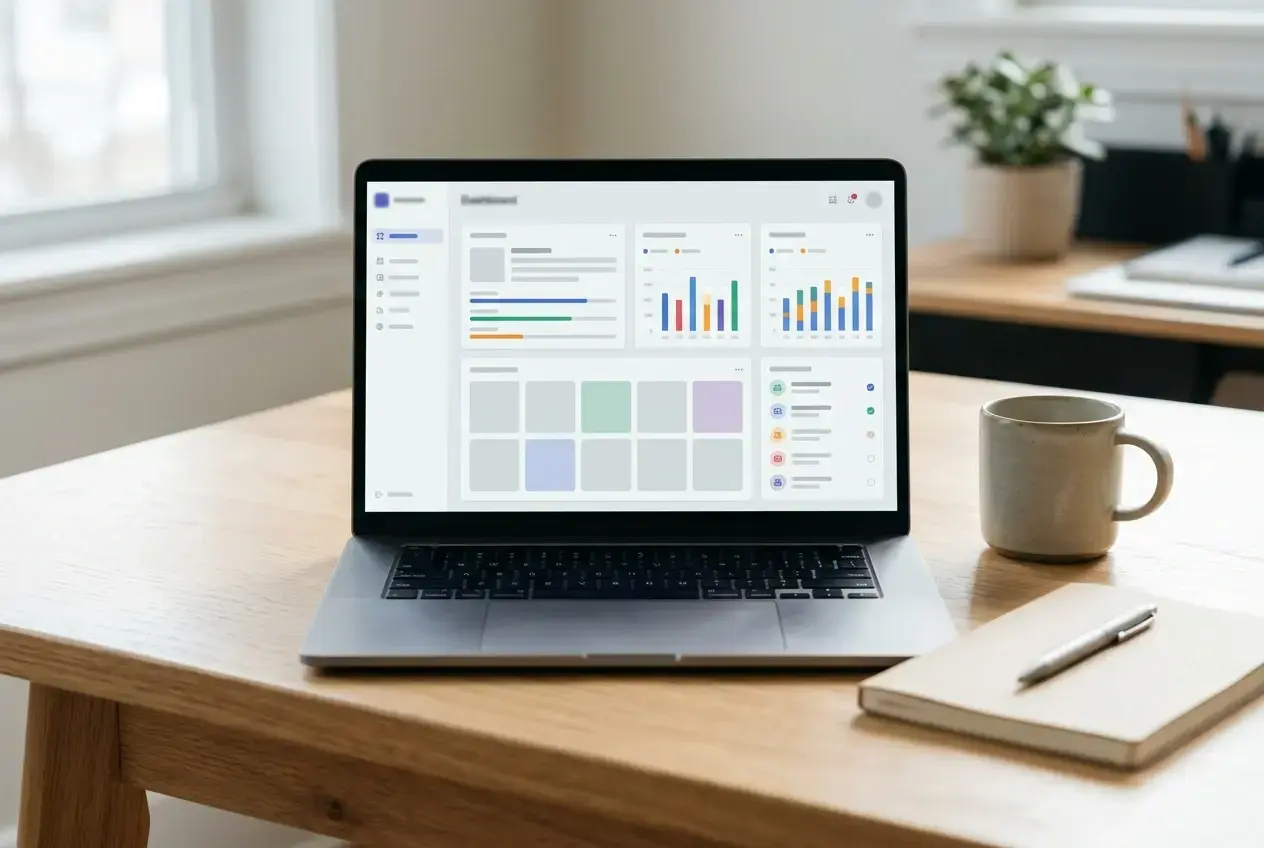
If you’re already inside Wealthy Affiliate building out your Hub, the Image Studio is worth a look. It’s built directly into the platform, so there’s no separate app to download or account to manage, and it’s designed with the same kind of simple, no-frills approach in mind. For a lot of parent bloggers, having one less login and one less tool to remember is worth more than extra features they won’t use anyway.
Which One To Start With This Week
If you have a few sessions this week to actually sit with a tool and learn where things live, start with Canva. The larger template library will pay off once you’re past the learning curve, and you’ll likely use it for years.
If you genuinely only have ten-minute windows and no time to spare on learning curves, start with Adobe Express. Make one pin. See how it feels. Small steps matter here, not picking the “best” tool on paper but picking the one you’ll actually open again tomorrow.
Final Word: Canva Vs Adobe Express
Both tools can make you a good-looking blog graphic. The real difference is how much time you spend getting there, and that’s the part that matters most when your design window is bordered by a nap on one side and dinner prep on the other. Try one this week, give it a real chance, and don’t feel like you have to commit forever on the first try.
If neither tool feels like the right fit, read the Wealthy Affiliate Image Studio review to see a simpler option built right into your Hub.
Let’s Chat
Let me know which tool you are using? Are you finding them? I’d love to hear what you have to say about how you create images for your blog. Let me know in the comments.