
When I started blogging, one of the biggest surprises wasn’t writing the content.
It was creating all the graphics.
Featured images. Pinterest pins. Social media posts. Lead magnets. Checklists.
Every blog post seemed to need several different designs, and as a busy parent, I quickly realised I didn’t have hours to learn complicated software like Photoshop.
That’s where Canva changed everything.
Today, Canva is one of the tools I use almost every day at Flex For Families. It helps me create blog graphics, Pinterest pins, social media content, printable resources, and even parts of the Parent Blogging Starter Kit without needing any design experience.
The reason I like it so much is simple.
It saves time.
Instead of spending an hour designing something from scratch, I can often create what I need in a few minutes using templates, drag-and-drop tools, and Canva’s growing collection of AI features.
But is Canva really worth paying for?
Can the free version do everything a new blogger needs?
And if you’re a busy parent trying to build a blog around family life, is Canva Pro actually a good investment?
In this review, I’ll share my real experience using Canva, walk you through its best features, compare Canva Free vs Canva Pro, and help you decide whether it’s the right design tool for your blogging journey.
Canva is one of the best design tools for bloggers because it makes creating blog graphics, Pinterest pins, lead magnets, and social media content simple, even for beginners. The free version is excellent, while Canva Pro offers time-saving features like Magic Resize, Brand Kit, AI tools, and Background Remover that can help busy parent bloggers create content faster.
Quick note: Canva is my go-to design tool, and I recommend it in my Parent Blogging Toolkit. If you decide to give Canva a try, I may earn a commission at no extra cost to you. Thank you for supporting this family-first blog!
Canva Review: Quick Verdict
Canva is one of the few blogging tools I use almost every day.
From creating blog featured images and Pinterest pins to designing lead magnets and social media graphics, it saves me a huge amount of time.
What makes Canva stand out is that you don’t need any design experience.
You can start with a template, customise it in minutes, and create graphics that look professional without spending hours learning complicated software.
For busy parents, that’s a big deal.
The free version is excellent and more than enough for beginners.
However, once you start publishing content regularly, Canva Pro becomes much easier to justify because of features like:
- Magic Resize
- Brand Kit
- Background Remover
- Premium templates
- AI-powered design tools
My Verdict
If you’re starting a blog, Canva is one of the first tools I’d recommend.
It helps you create better-looking content, saves time, and removes one of the biggest barriers new bloggers face: design.
Ready to Try Canva?
Create blog graphics, Pinterest pins, social media posts, lead magnets, and more without needing design skills.
Start free. Upgrade only if and when you need the extra features.
Why I Use Canva at Flex For Families
I don’t recommend tools simply because they have lots of features.
I recommend tools that genuinely make life easier.
Canva is one of those tools.
In fact, it’s one of the few blogging tools I use almost every day when working on Flex For Families.
When I created the Parent Blogging Starter Kit, Canva played a huge role in the process.
I used it to design:
- The Parent Blogging Success Roadmap
- The Weekly Blogging Planner
- The Family Flexibility Planner
- The Income Tracker
- Blog worksheets and printable resources
Without Canva, creating those resources would have taken significantly longer.
I also use Canva for most of the visual content on the site.
That includes:
- Blog featured images
- Pinterest pins
- Facebook graphics
- Resource page graphics
- Lead magnet designs
Even when I create images elsewhere using AI tools, I often bring them into Canva afterwards to add branding, logos, text overlays, and make sure they match the Flex For Families style.
That’s one of the biggest reasons I keep coming back to Canva.
It helps everything look consistent.
As a parent blogger, you quickly realise that creating content is only half the job.
You also need:
- Images
- Pins
- Social graphics
- Downloadable resources
Canva lets me create all of those in one place without needing separate design software.
Most importantly, it saves time.
And when you’re trying to build a blog around work, school runs, family commitments, and everything else life throws at you, saving time matters.
That’s why Canva has become a permanent part of my blogging toolkit.
What Can You Create With Canva?
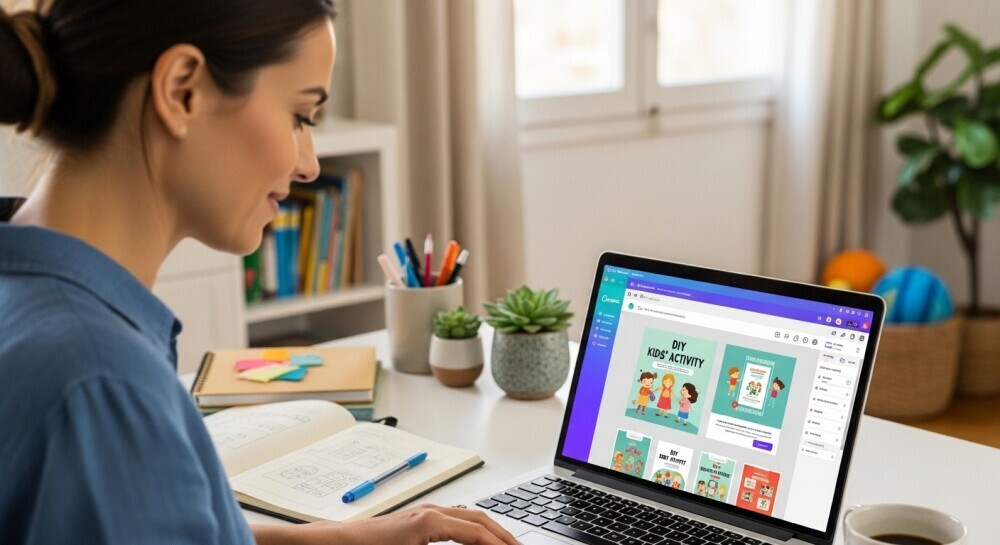
One of the reasons Canva is so popular with bloggers is its versatility.
Most people start by creating a few social media graphics.
Then they quickly realise Canva can handle almost every visual task involved in running a blog.
Blog Featured Images
Every blog post needs a strong image.
With Canva, you can create professional-looking featured images in minutes using templates, stock photos, text overlays, and brand colours.
This is exactly how I create many of the images used across Flex For Families.
Pinterest Pins
Pinterest remains one of the best traffic sources for many bloggers.
Canva includes hundreds of Pinterest templates that make it easy to create eye-catching pins without any design experience.
You can even duplicate successful designs and quickly create multiple pin variations for the same blog post.
Social Media Graphics
Whether you’re posting on:
Canva has ready-made templates sized perfectly for each platform.
This saves a huge amount of time compared to manually resizing graphics.
Lead Magnets and Freebies
If you’re building an email list, Canva is incredibly useful.
You can create:
- Checklists
- Workbooks
- Planners
- Cheat sheets
- eBooks
- Resource guides
I used Canva to create every resource inside the Parent Blogging Starter Kit.
Printables
Many parent bloggers create printable resources as lead magnets or products.
Examples include:
- Family planners
- Chore charts
- Meal planners
- Budget trackers
- Goal-setting worksheets
Canva makes these simple to design, even if you’ve never created a printable before.
Presentations
Canva isn’t just for graphics.
You can also create presentations for:
- Workshops
- Webinars
- Training sessions
- YouTube videos
Many creators now use Canva instead of PowerPoint because it’s faster and easier to customise.
YouTube Thumbnails
If you’re thinking about starting a YouTube channel, Canva makes thumbnail creation straightforward.
You can build branded thumbnail templates and update them in minutes for each new video.
eBooks and Digital Products
As your blog grows, Canva can help you create products to sell.
Many bloggers use Canva to design:
- Digital guides
- Courses
- Workbooks
- Journals
- Printable packs
Without needing expensive design software.
Website Graphics
Canva is also useful for creating:
- Website banners
- Call-to-action graphics
- Resource page images
- Category headers
- Email signup graphics
This helps keep your branding consistent across your entire website.
What Most Parent Bloggers Actually Need
The good news?
You probably won’t use all of Canva’s features immediately.
Most parent bloggers start with:
- Blog featured images
- Pinterest pins
- Social media graphics
- Lead magnets
That’s more than enough to get started.
As your blog grows, Canva grows with you.
It’s one of the few tools that can support you from your very first blog post right through to creating professional resources, digital products, and a recognisable brand.
I found this useful video tutorial for getting the most out of Canva, definitely worth a watch…
Canva Features That Save Busy Parents Time
One of the biggest reasons I recommend Canva to new bloggers is simple.
It saves time.
As parents, we don’t have hours to spend learning complicated software or creating every graphic from scratch.
Canva removes a lot of that frustration.
Here are the features I use most often at Flex For Families.
Templates: Start With a Head Start
Instead of staring at a blank page, Canva gives you thousands of ready-made templates.
You can find templates for:
- Blog graphics
- Pinterest pins
- Facebook posts
- Lead magnets
- Workbooks
- Presentations
- YouTube thumbnails
Simply choose a design, replace the text and images, and you’re ready to go.
For busy parents, this can turn a 60-minute task into a 10-minute task.
Brand Kit (Canva Pro)
This is one of my favourite features.
The Brand Kit lets you save:
- Your logo
- Brand colours
- Brand fonts
At Flex For Families, this means I can keep everything looking consistent without having to remember colour codes or font names every time I create something.
When you’re creating multiple blog posts, pins, and freebies each week, that adds up to a huge time saver.
Magic Resize (Canva Pro)
This feature alone can justify the Pro subscription.
Let’s say you’ve created:
- A Pinterest pin
- A Facebook graphic
- An Instagram post
Normally, you’d need to create separate designs for each platform.
With Magic Resize, Canva can automatically adapt your design to different sizes with a few clicks.
Instead of redesigning the same graphic three times, you create it once.
Background Remover (Canva Pro)
Want to remove the background from a photo?
No complicated editing software required.
Just upload the image and click a button.
I regularly use this when creating blog graphics, resource images, and promotional content.
What used to take 15 to 20 minutes in other software now takes seconds.
Canva AI Tools
Canva has added several AI-powered features that can speed things up even further.
These include:
- Magic Write
- AI image generation
- AI design suggestions
- AI presentation creation
- AI photo editing tools
Are they perfect?
No.
But they can help you get past a blank page much faster.
I often find they’re useful for generating ideas or creating a starting point that I can then personalise.
Stock Photos and Elements
Finding images can be surprisingly time-consuming.
Canva gives you access to a huge library of:
- Photos
- Icons
- Illustrations
- Graphics
- Videos
Even when I create images using AI tools such as Google Flow, I often bring them into Canva afterwards to add branding, text overlays, and my Flex For Families logo.
Everything ends up in one place.
Folders and Organisation
As your blog grows, so does the number of graphics you create.
Canva allows you to organise everything into folders.
For example, you might create folders for:
- Blog Posts
- Pinterest Pins
- Lead Magnets
- Social Media
- Email Graphics
Trust me, when you have hundreds of designs, you’ll be glad this feature exists.
Content Planner
If you create a lot of social media content, Canva also includes a content planner.
You can:
- Schedule posts
- Plan content ahead of time
- Keep everything organised
While I still use dedicated scheduling tools for some platforms, this can be useful if you want to keep your workflow simple.
Why These Features Matter for Parent Bloggers
Most blogging tools help you do more.
Canva helps you do things faster.
That’s a big difference.
As a parent, your biggest challenge usually isn’t creativity.
It’s finding time.
Canva removes many of the design bottlenecks that stop new bloggers from publishing content, promoting their posts, and building their brand.
And when you’re trying to squeeze blogging into nap times, school runs, and evenings, those saved minutes matter.
Canva Free vs Canva Pro: Which Version Do Parent Bloggers Actually Need?

This is probably the question I get asked most often.
Should you stick with Canva Free or pay for Canva Pro?
The good news is that Canva Free is genuinely useful.
Unlike many tools that lock everything behind a paywall, you can create blog graphics, Pinterest pins, social media posts, and even lead magnets without spending a penny.
In fact, if you’re just starting your blog, that’s exactly what I’d recommend.
Start with Free.
Learn the platform.
Create your first graphics.
Then decide if the extra features are worth it.
What You Get With Canva Free
For a new parent blogger, Canva Free includes more than enough to get started:
- Thousands of templates
- Basic photo editing tools
- Free stock photos and graphics
- AI-powered design assistance
- Ability to create and download designs
- Access from desktop and mobile
You can comfortably build:
- Blog post graphics
- Pinterest pins
- Facebook images
- Simple lead magnets
- Printable checklists
Without spending anything.
When I first started using Canva, the free version was more than enough.
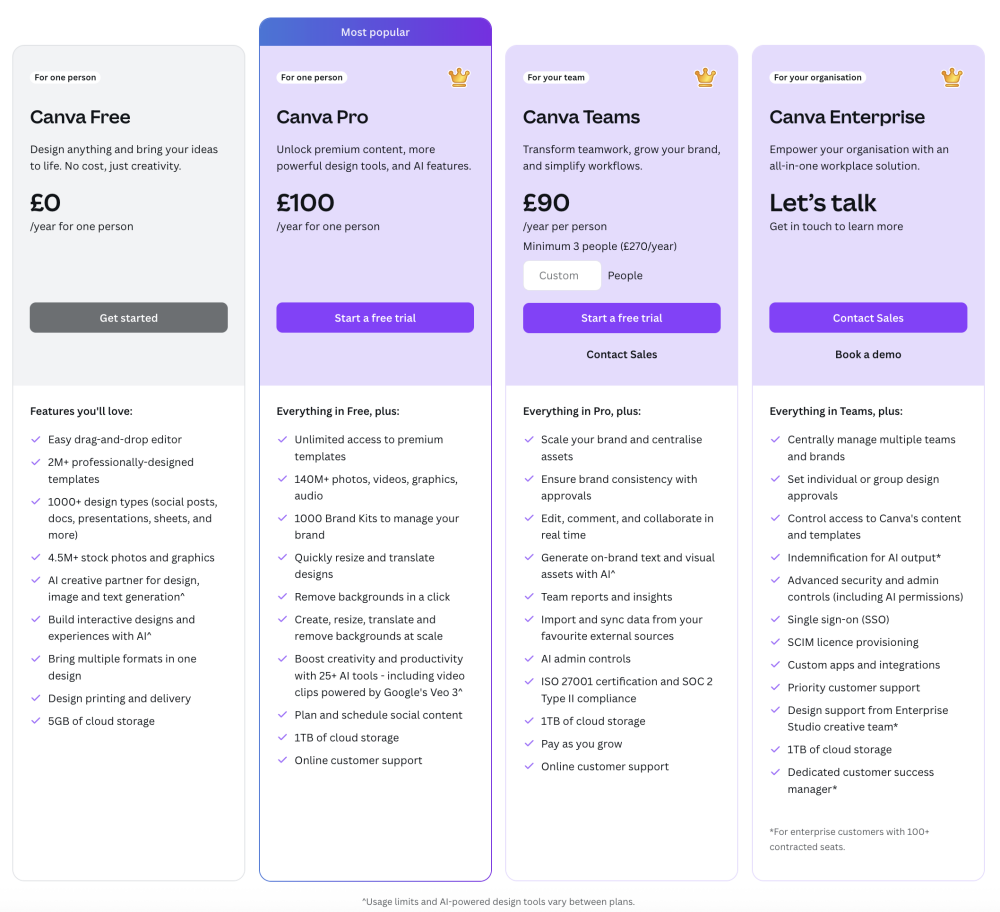
What You Get With Canva Pro
Canva Pro is where the real time-saving features live.
The biggest upgrades include:
- Brand Kit
- Magic Resize
- Background Remover
- Premium templates
- Premium stock photos, videos, and graphics
- Advanced AI tools
- Larger storage and organisation features
- Content scheduling
On paper, those might not sound exciting.
In practice, they can save hours every month.
The Three Features That Made Me Upgrade
There are lots of Pro features.
But honestly, these are the three that make the biggest difference for bloggers.
1. Brand Kit
Every graphic I create for Flex For Families uses the same:
- Logo
- Colours
- Fonts
Instead of manually setting those every time, Canva remembers them.
That keeps everything looking consistent and professional.
2. Magic Resize
This is a huge time saver.
Let’s say you’ve created:
- A Pinterest pin
- A Facebook post
- An Instagram graphic
Without Pro, you’re creating multiple versions manually.
With Pro, Canva can resize your design automatically.
One design becomes several.
That saves a surprising amount of time.
3. Background Remover
I use this regularly.
Whether it’s:
- Product images
- Profile photos
- Resource graphics
Removing backgrounds takes seconds instead of opening another editing tool.
My Honest Recommendation for New Bloggers
If you’re brand new to blogging:
✔ Start with Canva Free.
You don’t need Pro on day one.
Focus on:
- Choosing a niche
- Creating content
- Learning WordPress
- Publishing blog posts
Once you’re consistently creating content and graphics, Canva Pro becomes much easier to justify.
At that point, you’re not paying for extra features.
You’re paying to save time.
And for busy parents, time is often more valuable than money.
Canva Free vs Canva Pro at a Glance
| Feature | Canva Free | Canva Pro |
|---|---|---|
| Templates | ✔ Thousands | ✔ Millions |
| Stock Photos | ✔ Basic Library | ✔ Premium Library |
| Brand Kit | ✘ | ✔ |
| Magic Resize | ✘ | ✔ |
| Background Remover | ✘ | ✔ |
| Content Planner | Limited | ✔ |
| AI Tools | Basic Access | Expanded Access |
| Best For | New Bloggers | Growing Bloggers |
Which One Do I Use?
Today, I use Canva Pro.
Between:
- Blog graphics
- Pinterest pins
- Starter Kit resources
- Social media content
- Lead magnets
The time-saving features easily pay for themselves.
But if you’re just starting your blogging journey, don’t feel pressured to upgrade.
Canva Free is one of the best free tools available for parent bloggers.
Start there.
When Canva starts saving you time every week, that’s usually the point where Pro becomes worth the investment.
Canva AI Tools: Are They Actually Useful for Bloggers?
One of the biggest reasons Canva has become more than just a design tool is its growing collection of AI features.
A few years ago, Canva was mainly about templates and drag-and-drop design.
Today, it includes AI writing tools, image generation, design assistants, presentation builders, and editing tools that can save bloggers a surprising amount of time.
The question is:
Are they actually useful, or are they just shiny features you’ll never use?
After using Canva extensively for Flex For Families, I’d say some AI tools are genuinely helpful, while others are best viewed as time-savers rather than complete solutions.
Magic Write: Helpful, But Not a Blog Writer
Magic Write is Canva’s built-in AI writing assistant.
You can use it to generate:
- Headlines
- Social media captions
- Email subject lines
- Content ideas
- Short pieces of copy
For bloggers, it’s useful when you’re staring at a blank page.
I’ve found it works best for:
- Brainstorming ideas
- Creating social media captions
- Writing quick descriptions
- Generating alternative headlines
What I wouldn’t use it for is writing complete blog posts.
The output is often too generic and lacks the personal experience and expertise that makes content valuable.
For long-form blogging, I still prefer dedicated AI tools alongside my own experience and editing.
AI Image Generation
Canva now includes AI image generation directly inside the platform.
You simply describe the image you want and Canva creates it for you.
This can be useful for:
- Blog graphics
- Social media images
- Custom illustrations
- Featured images
Personally, I often use tools like Google Flow for image creation, but I almost always bring those images into Canva afterwards.
Why?
Because Canva makes it easy to:
- Add branding
- Insert text overlays
- Apply logos
- Create multiple image sizes
The design workflow is often just as important as the image itself.
Magic Design
This is one of Canva’s most underrated features.
Upload an image or enter a brief description and Canva will generate multiple design options automatically.
Instead of starting with:
- A blank Pinterest pin
- A blank presentation
- A blank social media graphic
You instantly get several starting points.
For busy parents, that’s a huge advantage.
Starting is often the hardest part.
AI Presentation Builder
If you create presentations, workshops, lead magnets, or training materials, Canva’s AI presentation tools can save a lot of time.
Provide a topic and Canva can generate:
- Slide structures
- Presentation layouts
- Suggested content
- Design themes
I wouldn’t publish the result untouched.
But as a starting point, it’s surprisingly useful.
Background Removal and AI Editing
These are the features I probably use most often.
Canva’s AI editing tools allow you to:
- Remove backgrounds
- Replace backgrounds
- Remove unwanted objects
- Expand images
- Edit specific parts of a photo
For bloggers creating graphics, product images, or downloadable resources, these tools can replace software that would otherwise require a much steeper learning curve.
AI Voiceovers and Video Tools
Canva has also expanded into video creation.
You can now use AI for:
- Voiceovers
- Video editing
- Captions
- Short-form content
If you’re creating:
- Pinterest Idea Pins
- Facebook videos
- Instagram Reels
- YouTube thumbnails
These tools can speed up production considerably.
Where Canva AI Fits Into a Blogging Workflow
Here’s how I think about Canva AI.
It doesn’t replace blogging.
It removes bottlenecks.
For example:
| Task | Canva AI Helps With |
|---|---|
| Blog graphics | AI images, Magic Design |
| Pinterest pins | Templates, AI design suggestions |
| Lead magnets | Presentation builder, design tools |
| Social posts | Magic Write, templates |
| Branding | AI editing and image tools |
| Content ideas | Magic Write brainstorming |
The result is less time spent creating assets and more time spent writing content and helping readers.
The Biggest Mistake Bloggers Make With AI
Some people expect AI to do everything.
That’s usually where disappointment happens.
The bloggers seeing the best results use AI to:
- Generate ideas
- Speed up design
- Remove repetitive tasks
- Create first drafts
Then they add their own experience, personality, and expertise.
That’s exactly how I use Canva AI at Flex For Families.
Is Canva AI Worth Paying For?
For most casual users, Canva Free is still excellent.
But if you’re regularly creating:
- Blog graphics
- Pinterest pins
- Lead magnets
- Social media content
The AI features included in Canva Pro can easily save several hours each month.
For busy parents, that’s often where the real value lies.
Not because the AI is perfect.
Because it helps you get more done in the small pockets of time you actually have available.
How Parent Bloggers Can Use Canva to Grow Faster
One of the reasons Canva has become such an essential part of my blogging toolkit is that it helps with far more than just creating images.
As your blog grows, you’ll need graphics for traffic, branding, email marketing, and lead generation.
The good news is that Canva can handle all of these from one place.
Here are three practical ways I use Canva at Flex For Families.
Creating Your First Blog Graphics With Canva
When you’re new to blogging, design can feel intimidating.
You might worry that your graphics won’t look professional enough or that you need expensive software to compete.
Thankfully, that’s not true.
With Canva, most parent bloggers can create their first graphics within minutes.
The first graphics I recommend creating are:
- Featured blog images
- Pinterest pins
- Facebook post graphics
- Email newsletter images
The process is simple:
- Choose a template
- Replace the text
- Add your colours and branding
- Download and publish
That’s it.
You don’t need graphic design experience.
You don’t need Photoshop.
You just need a template and a message.
Today, every blog post on Flex For Families uses Canva graphics in some way, whether it’s a featured image, social media graphic, or downloadable resource.
For new bloggers, Canva removes one of the biggest barriers to getting started.
Canva for Pinterest Marketing
If you’re using Pinterest to grow your blog, Canva becomes even more valuable.
Pinterest is highly visual.
Great content alone isn’t enough.
You also need eye-catching pins that encourage people to click.
Canva makes this process incredibly simple.
You can create:
- Standard Pinterest pins
- Idea Pin graphics
- Pin covers
- Seasonal pin variations
- Branded templates
One of my favourite Canva workflows is creating multiple pin designs for the same blog post.
For example:
A post titled:
“How to Start a Parent Blog in 2026”
Could easily have:
- A beginner-focused pin
- A flexibility-focused pin
- An income-focused pin
- A family-life-focused pin
Each design targets a slightly different audience while linking to the same article.
This gives you more opportunities to get clicks and traffic.
The combination of Canva and Pinterest is one of the easiest ways for new bloggers to start building visibility without spending money on advertising.
If Pinterest is part of your traffic strategy, Canva quickly becomes one of the most valuable tools in your blogging stack.
Canva for Lead Magnets and Freebies
This is where Canva really shines for bloggers.
Many new bloggers assume they need expensive software to create professional lead magnets.
In reality, Canva can handle almost everything.
At Flex For Families, I used Canva to create resources such as:
- Parent Blogging Success Roadmap
- Parent Blog Niche Finder Workbook
- Weekly Blogging Planner
- Family-Friendly Income Tracker
- Parent Blogging Starter Kit resources
Using Canva, you can build:
- Checklists
- Workbooks
- Planners
- eBooks
- PDF guides
- Cheat sheets
- Resource packs
The templates make the process much easier.
Instead of designing every page from scratch, you can customise existing layouts and focus on the content itself.
This is especially helpful for busy parents.
Your lead magnet doesn’t need to win design awards.
It simply needs to look professional, be easy to read, and help your audience solve a problem.
Canva makes that achievable, even if you’ve never designed anything before.
And if your goal is to build an email list, create free resources, and eventually recommend products through affiliate marketing, Canva can help you create nearly everything you need without hiring a designer.
For many bloggers, this is where Canva starts paying for itself.
Creating a freebie is only half the battle. You also need a way to get visitors to see it. That’s one reason I use Poptin to promote my Parent Blogging Starter Kit across Flex For Families.
Canva Review: Pros and Cons
No tool is perfect.
Even though Canva is one of the easiest tools I’ve used for blogging, there are still a few drawbacks worth mentioning.
Here’s my honest take after using it extensively for Flex For Families.
Pros
Beginner-Friendly
This is Canva’s biggest strength.
You don’t need:
- Design experience
- Technical skills
- Expensive software
Most people can create their first graphic within minutes.
Massive Time Saver
Between templates, Magic Resize, Brand Kit, and AI tools, Canva removes a lot of repetitive work.
For busy parents, that’s incredibly valuable.
Excellent Free Plan
Many tools heavily restrict their free versions.
Canva Free is genuinely useful.
You can create blog graphics, Pinterest pins, social media content, and even lead magnets without spending anything.
Perfect for Bloggers
Canva handles almost everything a blogger needs:
- Featured images
- Pinterest graphics
- Social media posts
- Lead magnets
- PDFs
- Presentations
Instead of learning multiple tools, you can do most of your design work in one place.
Huge Template Library
Whether you’re creating:
- A Pinterest pin
- An eBook cover
- A workbook
- A Facebook graphic
There’s usually a template available to help you get started faster.
Works Across Devices
You can use Canva on:
- Desktop
- Laptop
- Tablet
- Mobile
This flexibility is useful when blogging around family life.
Cons
Too Many Choices Sometimes
Canva has thousands of templates.
While that’s usually a good thing, it can occasionally feel overwhelming.
New users can spend more time browsing templates than actually creating.
Some Best Features Require Canva Pro
Features like:
- Magic Resize
- Brand Kit
- Background Remover
Are locked behind the Pro subscription.
The Free version is excellent, but some of the biggest time-saving features require an upgrade.
Limited for Professional Designers
If you’re creating complex illustrations, advanced photo editing, or professional graphic design work, Canva won’t replace software like Photoshop or Illustrator.
For bloggers, this usually isn’t a problem.
For professional designers, it might be.
AI Tools Still Need Human Input
Canva’s AI features are useful.
But they’re not perfect.
You’ll still need to:
- Edit outputs
- Personalise content
- Add your own experience and branding
Think of them as assistants rather than replacements.
My Overall Take
For bloggers, affiliate marketers, and busy parents, the advantages massively outweigh the drawbacks.
The few limitations rarely affect the type of content most bloggers create.
That’s why Canva remains one of the first tools I recommend to anyone starting a blog.
Canva Alternatives
While Canva is my preferred design tool, it’s not the only option available.
Depending on your needs, one of these alternatives may be worth considering.
Adobe Express
Best for: Users already in the Adobe ecosystem
Adobe Express offers:
- Templates
- Social media graphics
- AI-powered design tools
- Integration with Adobe products
Pros:
- Strong Adobe branding
- Good AI features
- Professional templates
Cons:
- Smaller learning curve than Canva
- Less intuitive for complete beginners
- Some features feel geared towards existing Adobe users
For most parent bloggers, Canva is usually easier to learn.
VistaCreate
Best for: Bloggers looking for a Canva-style alternative
VistaCreate offers:
- Template-based design
- Social media graphics
- Animations
- Brand kits
Pros:
- Similar workflow to Canva
- Competitive pricing
- Good template selection
Cons:
- Smaller asset library
- Less community support
- Fewer tutorials available
It’s probably the closest direct competitor to Canva.
Snappa
Best for: Simple graphic creation
Snappa focuses on:
- Social graphics
- Blog images
- Quick design workflows
Pros:
- Very easy to use
- Clean interface
- Fast graphic creation
Cons:
- Smaller feature set
- Fewer templates
- Less flexibility than Canva
Good for simplicity, but Canva offers much more room to grow.
Figma
Best for: Professional designers and collaborative teams
Figma is incredibly powerful.
Pros:
- Advanced design capabilities
- Team collaboration
- Professional workflows
Cons:
- Much steeper learning curve
- Overkill for most bloggers
- Not designed specifically for content creators
For parent bloggers, Figma is usually far more than you’ll ever need.
Why I Still Recommend Canva
After trying various design tools over the years, I keep coming back to Canva because it sits in the sweet spot between:
- Ease of use
- Features
- Affordability
- Flexibility
It helps beginners create professional-looking content quickly while still offering enough advanced features to grow with your blog.
For most parent bloggers, I don’t think there’s currently a better all-round design tool available.
Who Is Canva Best For?
One of the reasons Canva has become so popular is that it works for a wide range of people.
But like any tool, it’s not perfect for everyone.
Here’s who I think gets the most value from Canva, and who may be better served by something more advanced.
Canva Is Perfect For:
New Bloggers
If you’re just starting a blog, Canva is one of the easiest ways to create professional-looking graphics without needing design skills.
You can quickly create:
- Featured images
- Pinterest pins
- Social media graphics
- Lead magnets
Without spending weeks learning complicated software.
For beginners, that’s a huge advantage.
Parent Bloggers
This is probably Canva’s sweet spot.
Parents often have:
- Limited time
- Limited budgets
- Limited design experience
Canva solves all three problems.
You can create graphics in short pockets of time, use the free version while getting started, and produce content that looks professional from day one.
It’s one of the core tools I use at Flex For Families for exactly that reason.
Affiliate Marketers
Affiliate marketing relies heavily on content and promotion.
Canva helps affiliate marketers create:
- Blog graphics
- Comparison tables
- Social media content
- Resource guides
- Lead magnets
Without hiring a designer.
If you’re building an affiliate business, Canva can become one of your most-used tools.
Pinterest Creators
Pinterest and Canva work exceptionally well together.
Canva makes it easy to create:
- Standard pins
- Idea Pin graphics
- Seasonal pin designs
- Multiple pin variations
For bloggers trying to grow traffic through Pinterest, Canva is almost a necessity.
Small Business Owners
Many small business owners simply need a way to create professional marketing materials quickly.
Canva can help with:
- Social media graphics
- Flyers
- Presentations
- Marketing materials
- Promotional content
Without needing a dedicated design team.
Canva May Not Be Ideal For:
Professional Graphic Designers
Canva is powerful, but it isn’t designed to replace professional design software.
If you’re creating:
- Complex illustrations
- Advanced photo editing
- Professional branding projects
- Commercial design work
Tools like Adobe Photoshop, Illustrator, or Figma will offer significantly more control.
Advanced Photoshop Users
If you’re already highly skilled with Photoshop, Canva may feel limiting.
Many advanced editing features simply aren’t available.
While Canva is faster for everyday graphics, Photoshop remains the more powerful tool for detailed creative work.
Agencies Needing Complex Design Workflows
Larger agencies often require:
- Advanced collaboration
- Custom design systems
- Detailed file management
- Complex client workflows
Canva has improved significantly in this area, but it still isn’t built primarily for enterprise-level design teams.
My Honest Take
Most people reading this review fall into one of these categories:
- New bloggers
- Parent bloggers
- Affiliate marketers
- Small business owners
For those groups, Canva is incredibly difficult to beat.
It’s easy to learn, affordable, packed with useful features, and capable of creating almost everything you’ll need as your blog grows.
That’s why even after trying other design tools over the years, Canva remains one of the few tools I use almost every single day.
Final Verdict: Is Canva Pro Worth It for Bloggers?
If you’re a busy parent trying to build a blog around family life, Canva is one of the easiest tools you’ll ever use.
It removes one of the biggest obstacles new bloggers face:
Design.
You don’t need expensive software.
You don’t need graphic design skills.
You don’t need hours of free time.
Whether you’re creating:
- Blog graphics
- Pinterest pins
- Lead magnets
- Social media content
- Email resources
Canva makes the process faster and less stressful.
Is Canva Free Good Enough?
Absolutely.
If you’re just starting your blogging journey, Canva Free gives you everything you need to create professional-looking graphics.
You can build your blog without spending a penny.
Is Canva Pro Worth It?
In my opinion, yes.
Especially once you’re creating content consistently.
Features like:
- Brand Kit
- Magic Resize
- Background Remover
- Premium templates
- Canva AI tools
Can save hours every month.
For busy parents, that’s often worth far more than the subscription cost.
My Personal Verdict
If Wealthy Affiliate is the platform I recommend for learning how to build a blog, Canva is the design tool I recommend for making that blog look professional.
I’ve used Canva to create:
- Every resource in my Parent Blogging Starter Kit
- Blog graphics
- Pinterest pins
- Social media content
- Lead magnets
- Workbooks and planners
It’s one of the few tools I genuinely use almost every day.
Rating: 9.5/10
Simple enough for beginners.
Powerful enough to grow with your blog.
Ready to Create Professional Graphics Without the Overwhelm?
Whether you’re starting your first blog or growing an existing one, Canva makes design faster, easier, and far less intimidating.
🎨 Start Creating With Canva Today
Create blog graphics, Pinterest pins, lead magnets, and social media content without needing any design experience.
Perfect for busy parents who want professional results without the steep learning curve.
Start for free. Upgrade only when you need the extra features.
Canva FAQ
Is Canva really free?
Yes. Canva offers a genuinely useful free plan that includes thousands of templates, graphics, and design tools. Most new bloggers can comfortably start with Canva Free.
Is Canva Pro worth it for bloggers?
For many bloggers, yes. Features like Brand Kit, Magic Resize, Background Remover, and premium templates can save significant time once you’re creating content regularly.
Can I use Canva for Pinterest pins?
Absolutely. Canva is one of the most popular tools for creating Pinterest graphics. It includes Pinterest-specific templates and makes it easy to create multiple pin variations.
Can I create lead magnets with Canva?
Yes. Canva is excellent for creating:
- Checklists
- Workbooks
- Planners
- eBooks
- PDF guides
- Resource packs
In fact, I created the entire Parent Blogging Starter Kit using Canva.
Is Canva good for beginners?
Definitely. Canva is designed for people with little or no design experience. The drag-and-drop editor and template library make it one of the easiest design tools available.
What is the difference between Canva Free and Canva Pro?
Canva Free includes basic design tools, templates, and graphics.
Canva Pro adds:
- Brand Kit
- Magic Resize
- Background Remover
- Premium assets
- Advanced AI tools
- Content scheduling
Can Canva replace Photoshop?
For most bloggers, yes.
For professional graphic designers, probably not.
If your main goal is creating blog graphics, Pinterest pins, social media posts, and lead magnets, Canva is usually more than enough.
Let’s Chat
Have you used Canva before?
Are you currently using Canva Free, or have you upgraded to Canva Pro?
I’d love to know what you’re creating.
Are you designing:
- Blog graphics?
- Pinterest pins?
- Lead magnets?
- Social media content?
Or are you still deciding whether Canva is worth trying?
Drop a comment below and let me know.
And if you’re building a blog around family life, don’t forget to grab the Parent Blogging Starter Kit. It includes the exact planners, workbooks, and resources I created using Canva to help busy parents start blogging with confidence.