
When you’re balancing family life and blogging, time is everything. No parent blogger wants to spend hours scrolling through endless photo libraries only to find images that look too staged or overused. The right visuals help your posts shine, connect with readers, and keep your blog feeling personal. Without eating up your naptime window.
Over the past year, I’ve tested just about every free and affordable image resource I could find. Some were great for quick wins, while others needed more work to fit my brand’s family-first vibe. Today, I want to share the ones that truly help me save time, stay consistent, and keep my blog looking fresh. Even when I’m working around school runs and snack breaks.
Whisk from Google – The Game-Changer for Quick, Clean Images
Whisk has become one of my favourite tools lately. It’s surprisingly fast, integrates with Google’s ecosystem, and delivers clean, versatile images that work beautifully for blog headers and featured visuals.

When Canva’s Magic Media doesn’t quite get it right, I turn to Whisk. It’s perfect for pulling together lifestyle images that feel genuine, not overly filtered or “stocky.” You can tweak prompts easily, and the results are usually on-brand for parent content: cosy home setups, family-friendly scenes, and real moments that readers connect with.
Parent Tip:
Whisk is especially great for lifestyle photos that feel real, not staged. Perfect for parenting or home-based blogging posts.
What I also love about Whisk is how easy it is to adjust licensing and download settings before uploading to WordPress. You can quickly switch between photo and illustration styles, so it’s flexible whether you’re creating a Pinterest pin or a hero image for your latest post.
Canva’s Evolving AI Tools – From Magic Media to Full Design Control
Canva has been a staple in my blogging toolkit for years, and it’s only getting smarter. Between creating featured images for blog posts, designing social media pins, and scheduling posts through its built-in calendar, Canva really does it all, even on the free plan.
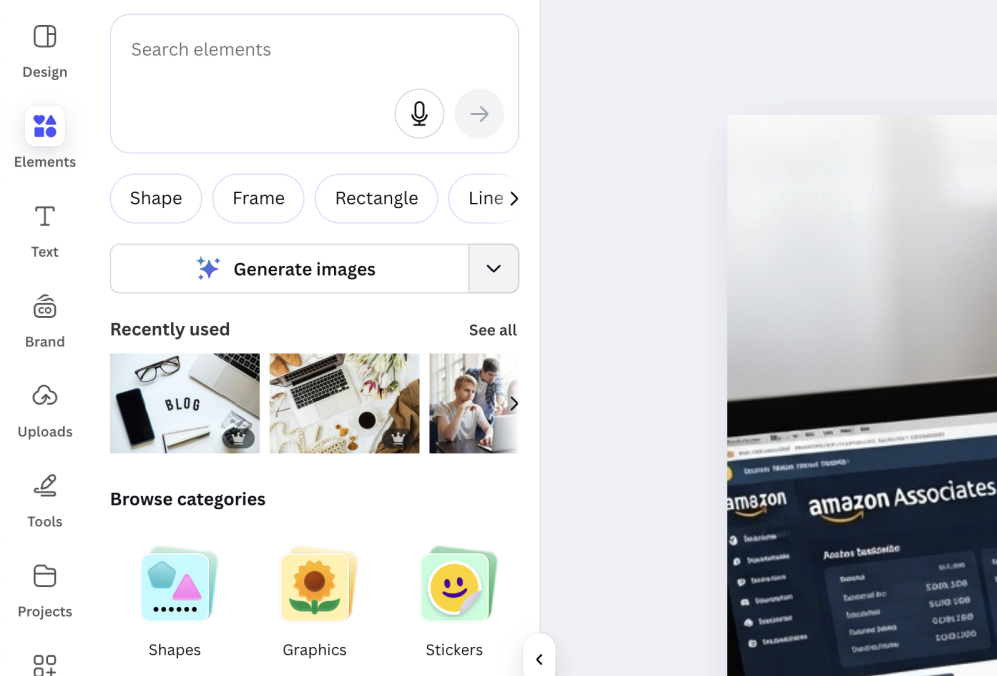
Lately, I’ve been experimenting with its Magic Media AI tool for generating original images and mockups. While the results sometimes need a little fine-tuning (especially for realistic family scenes), I’ve found that pairing Canva’s AI with Whisk gives me the perfect balance. Whisk handles the natural image generation, while Canva lets me polish everything; add text overlays, apply my Flex For Families colours, and make each image feel unique.
For parents who want to stay consistent with branding but don’t have hours to edit, Canva’s features like Background Remover and Magic Resize are time-savers. I also use it to plan my social posts visually through the Content Calendar, so I can batch everything during quiet evenings.
If you haven’t already, you can read my full review of how I use Canva here:
👉 Canva for Beginners: Simple Design for Busy Parents (2025 Review)
Wealthy Affiliate’s Image Studio
Now, here’s something that has me genuinely excited – Wealthy Affiliate’s new Image Studio.
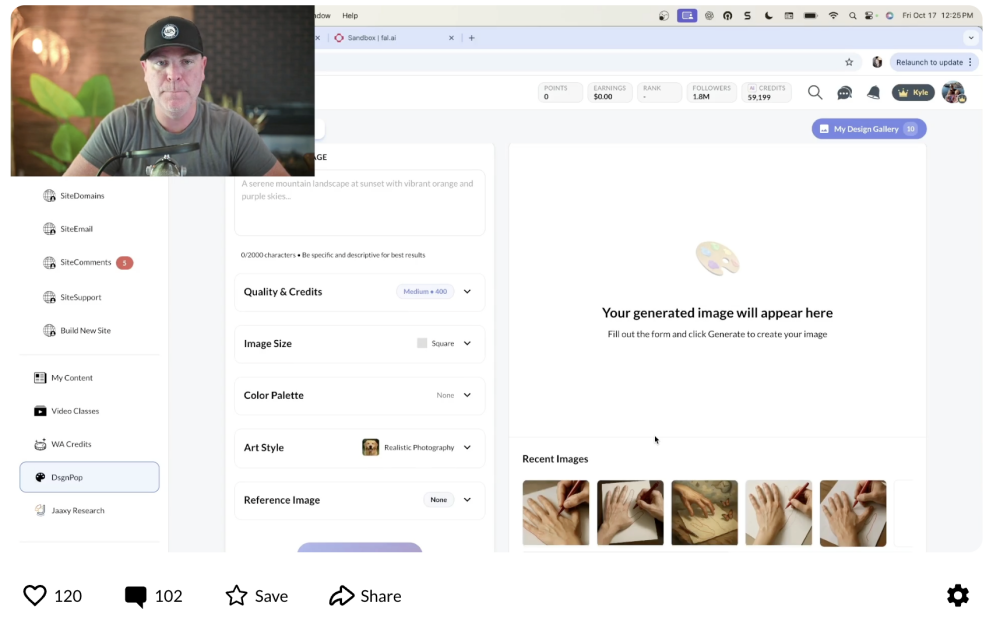
It’s has just launched, and from what Kyle has shared, this feature is going to bring a full-scale image creation platform right inside Wealthy Affiliate. That means you’ll be able to create everything from blog graphics and social media visuals to ad creatives and product imagery without ever leaving your WA dashboard.
Kyle described it like this:
“We’re building a full-scale image creation environment that will allow you to design blog and website images, social media visuals, ad creatives, and more – all powered by the latest and best AI models.”
If you’re already using WA for blogging training or hosting, this new addition could remove a lot of tech friction. No juggling multiple platforms or worrying about extra subscriptions.
I’ll definitely be testing it the moment it goes live. Especially if it can combine Canva’s creative control with Whisk’s realistic style.
If you’re curious about how Wealthy Affiliate helps parents like us build income online (and soon, create stunning visuals, too), check out my full review here: Wealthy Affiliate Review – Can Busy Parents Really Build Income Online?
Other Trusted Free Image Resources
While Whisk, Canva, and soon Wealthy Affiliate’s Image Studio make an incredible trio for parent bloggers, there are a few other free image sites worth keeping in your toolkit.
Each one offers its own flavour, from cosy home moments to lifestyle scenes that don’t look overly “stock photo perfect.”
Pexels – This is one of my favourites for natural family photos and diverse representation. You’ll find warm, relatable images that feel real, which makes a big difference when you want to connect emotionally with readers.
Pixabay – A classic choice that still earns its place. I love it for quick finds. Especially background textures or minimalist workspace shots. Everything is free to use and easy to edit inside Canva or Whisk.
Unsplash – Great for those soft, authentic lifestyle shots that feel like they came from your own camera roll. The lighting and composition tend to be excellent, making them a top pick for featured blog images.
Kaboompics – This one fits right in with the Flex For Families vibe. The images are bright, modern, and full of soft tones. It’s ideal for flat lays, parenting articles, or anything that needs a little visual calm.
Burst by Shopify – Designed for entrepreneurs, Burst shines for content about flexible work, side hustles, or home-based businesses. Perfect if you write about balancing work and family.
Each of these tools saves hours of searching and resizing, especially when you use them alongside Whisk or Canva. My tip? Build a small “go-to” image folder with your favourite styles so you can grab and post without starting from scratch every time.
How to Build an Image Workflow That Saves Time
Even with great tools, image creation can easily take over your schedule if you don’t have a plan. I’ve learned that having a simple workflow makes all the difference, especially when your creative window is short.

Here’s how I structure mine:
- Batch Image Creation: I set aside an hour a week to make 5–10 new visuals in Canva or Whisk. That gives me enough content for blog posts, Pinterest pins, and Instagram reels.
- Keep Brand Consistency: Use the same fonts, accent colours, and filters for every post. This keeps your blog instantly recognisable, even when you’re mixing image sources.
- Save Your Favourites: I keep folders in Canva for “Header Images,” “Pinterest Pins,” and “Free Stock Fallbacks.” It saves loads of time when I need a quick upload.
- Test and Tweak: Over time, you’ll spot what type of visuals get the most engagement. Lean into those – whether it’s cosy home shots or minimal flat lays.
Small systems like this make visual creation feel less like a chore and more like a natural part of your blog rhythm.
Frequently Asked Questions About Free Blog Images
Do I need to credit images I use from free sites?
It depends on the source. Most sites like Pexels, Pixabay, and Unsplash don’t require attribution – but it’s still a kind gesture to credit the creator if possible. It shows appreciation and supports the creative community that makes free resources available.
Can I use these images on Pinterest or social media?
Absolutely. All the tools and platforms mentioned here allow for social media sharing and promotional use. Just avoid implying endorsement (for example, don’t use someone’s face to “represent” a product or opinion unless you have permission).
Are AI-generated images safe to use on my blog?
Yes, as long as they come from trusted tools like Whisk, Canva, or (soon) Wealthy Affiliate’s Image Studio, which provide clear usage rights. Avoid using random AI generators without licensing terms – it’s always best to stick with platforms that publish their policies.
What’s the best image size for blogs?
For most WordPress blogs, 1200 × 800 px works beautifully for featured images, and 600–800 px wide for inline visuals. It keeps your pages fast while still looking sharp. Canva makes resizing easy with the Magic Resize tool if you’re reusing images for social posts.
How do I keep image file sizes small without losing quality?
Use a free tool like TinyPNG or Compressor.io before uploading to WordPress. Smaller file sizes keep your site fast, which matters for both SEO and user experience – especially if your readers are busy parents browsing on mobile.
Can I mix stock and personal photos on my blog?
Definitely! Many parent bloggers combine a few personal photos (like cosy family moments or your workspace) with stock images for variety. Just make sure your personal images feel consistent with your blog’s colour tones and style.
What if I can’t find a photo that fits my exact topic?
This is where tools like Canva and Whisk shine. Try prompting for lifestyle photos that match the mood of your post – not just the literal topic. For instance, if you’re writing about time management, a calm morning scene can capture the feeling better than a picture of a clock.
Conclusion – Build a Visual Library That Works for You
As parent bloggers, we don’t have unlimited hours – or patience – to chase down the “perfect” photo. What matters most is creating visuals that feel true to your story, match your message, and help you stay consistent.

With tools like Whisk, Canva, and the Wealthy Affiliate Image Studio, plus a few trusted free resources, you can build a powerful library of ready-to-go images that make your blog feel polished and professional – even if you’re creating between school runs and snack time.
Remember, your visuals don’t have to be flawless. They just need to reflect your family’s real journey and the brand you’re building with heart.
Let’s Chat!
Choosing the right image tools can make blogging feel so much lighter – especially when you’re balancing posts between school runs and snack time.
I’d love to know: what’s your go-to resource for creating or finding blog images that fit your family brand?
Do you use Canva, Whisk, or have another favourite free site I should check out?
Drop your tips in the comments below – your suggestion might be exactly what another busy parent blogger needs today!